Mailing Configuration
Sending Emails via Custom SMTP
azuma doa supports sending emails through a custom SMTP server. This allows you to use your own mail infrastructure for all outgoing emails, such as verification, password reset, and notification messages.
SMTP Configuration Options
To configure SMTP, set up the following settings for your tenant in the Developer Portal:
- URL: The address of your SMTP server (e.g.,
smtp.example.com) - Port: The port to connect to (commonly
587for TLS,465for SSL, or25for plain) - Username: The username for SMTP authentication
- Password: The password for SMTP authentication
- From Email: The email address that will appear as the sender
- From Display Name: The display name that will appear as the sender
If you need further mail sending options, please don't hesitate to contact us.
Template Configuration
azuma doa uses a flexible templating system for emails, allowing you to customize both the layout and content of outgoing messages.
Template Mode
Default: Default azuma doa templates are used (which include azuma doa specific branding)Generic: Generic templates are used. This is the recommended Template Mode.
The Generic Template Mode allows the configuration of the following parameters
Subject Prefix TextHeader App Icon HTMLFooter Line 1 HTMLFooter Line 2 HTML
The values correlated to the following in the default template: TODO
If values are not configured, the corresponding HTML-elements are not displayed.
Base and Specific Templates
- Base Template: Defines the overall structure (header and footer) shared by all emails. Usage of the Base Template can be enabled per Specific Template.
- Specific Templates: Define the content for particular email types. The following email types are currently supported:
- Verification
- Recovery
- Account Authentication Method Changes
Templates are written in HTML and support parameter replacement for dynamic content based on https://shopify.github.io/liquid/.
Examples (Generic Template Mode)
Example 1: Default Base Template
Result 1:
Result for the Verification Email (with english language, no parameters configured):
- Subject: "Please verify your email address"
- Body:

Result 2:
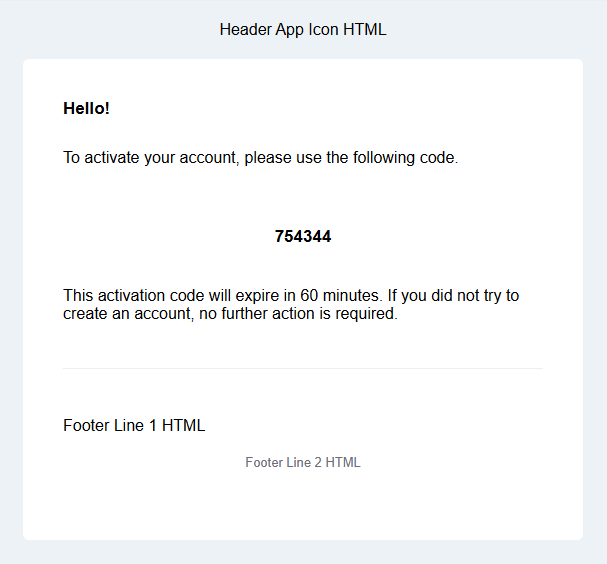
Result for the Verification Email (with english language, parameter=name configured):
- Subject: "Subject Prefix Text: Please verify your email address"
- Body:
Example 2: Default Base Template with parameters
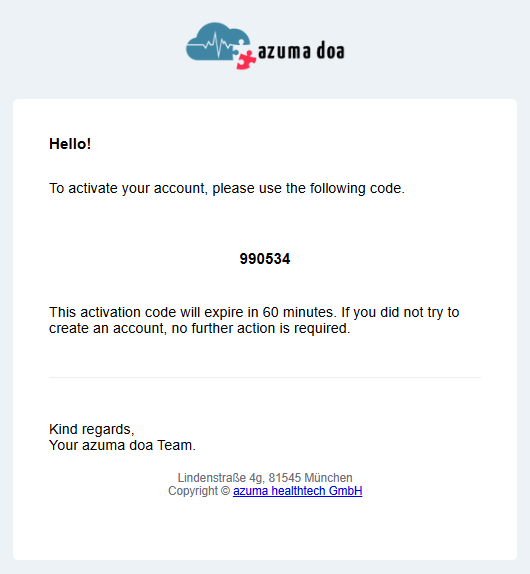
With parameters configured as follows:
Subject Prefix Text: MyDiGAHeader App Icon HTML
<a href="https://azuma.health" rel="noopener" target="_blank">
  <img alt="azuma Logo" src="https://neprdstorage.blob.core.windows.net/images/logo.png" />
</a>
Footer Line 1 HTML:
Kind regards,
<br/>
Your azuma doa Team.
Footer Line 2 HTML:
Lindenstraße 4g, 81545 München
<br/>
Copyright © <a href="https://azuma.health" rel="noopener" target="_blank">azuma healthtech GmbH</a>
Result:
- Subject: "MyDiGA: Please verify your email address"
- Body:
Example 3: Locale-based parameter replacement
With parameters configured as follows:
Footer Line 1 HTML:
{% if Locale == "de" %}
Herzliche Grueße,
<br/>
Ihr azuma doa Team.
{% endif %}
{% if Locale == "en" %}
Kind regards,
<br/>
Your azuma doa Team.
{% endif %}
you can specify the locale based text.
Example 4: Custom Base Template
Base Template:
${param:template_content}
<br/>
<br/>
Best regards,
Your DiGa Team
Verification Template::
Here is your code: ${param:verification_code}
The parameter ${param:template_content} is used to inject the content from the Specific Templates.
Result:
Result for the Verification Email (with english language):
- Subject: "Please verify your email address"
- Body:
