Create a Project
A project pairs a codebase with a compliance policy. Creating one is a two-part flow: enter the general details, then set up the local workspace.
1. Create the project
Open Create New Project ("Onboard a new codebase for nori compliance monitoring.") and fill in the General Details:
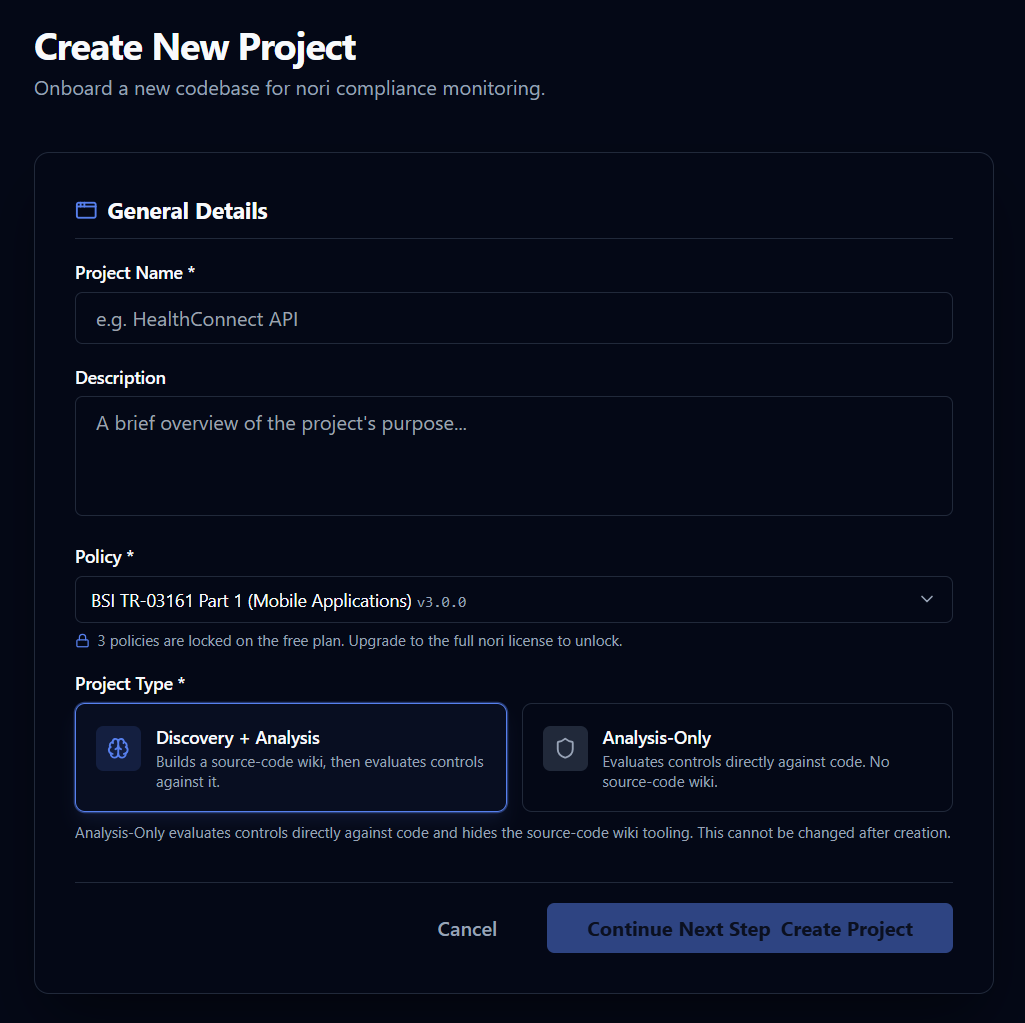
| Field | What to enter |
|---|---|
| Project Name * | A name for the codebase, e.g. HealthConnect API. |
| Description | A short summary (optional). |
| Policy * | The target standard from the dropdown ("-- Select Target Policy --"), e.g. BSI TR-03161 Part 1 (Mobile Applications). |
Click Create Project.
When creating the project you also choose its mode — Discovery & Analysis (default) or Analysis-Only. This choice is fixed for the life of the project and determines how runs work; see Run an Analysis to compare the two.
2. Set up the local workspace
Next, complete Local Workspace Setup — "Setup your local code paths and AI configurations for your project." This is a two-step wizard:
Step 1 — Workspace Directories
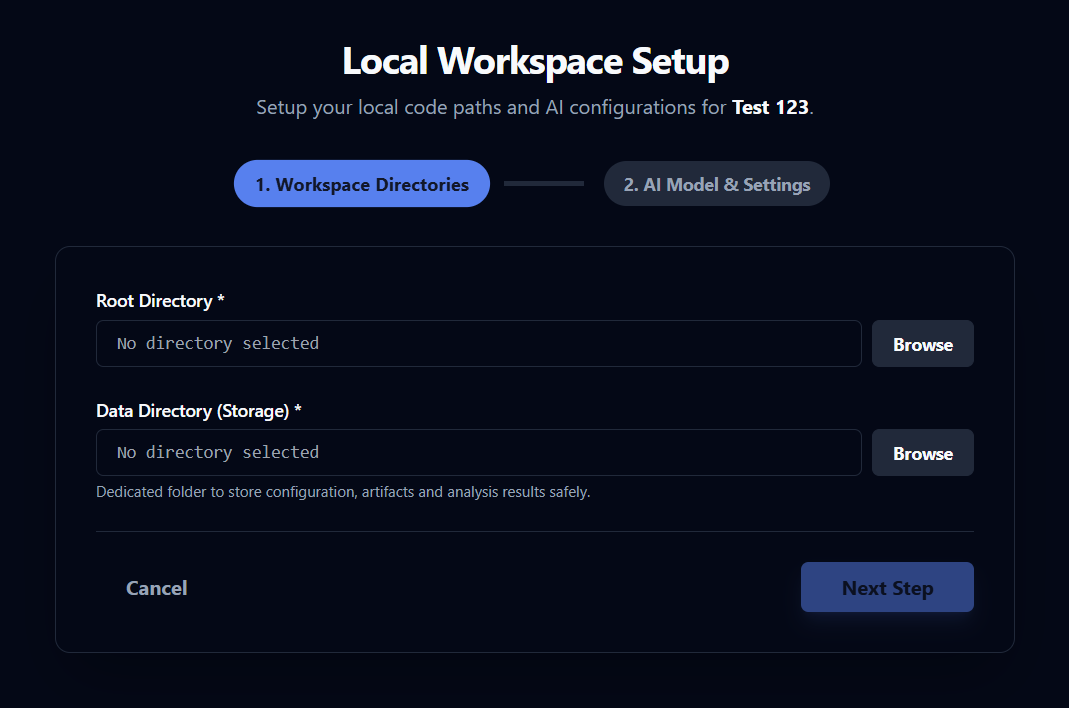
- Root Directory * — the folder containing the source code you want to audit (use Browse).
- Data Directory (Storage) * — a dedicated folder where nori stores configuration,
artifacts, and analysis results (the local
.noriworkspace). "Dedicated folder to store configuration, artifacts and analysis results safely."
Click Next Step.
Step 2 — AI Model & Settings
- AI Model * — Pick your preferred base provider. Nori supports Per-Phase Model Configuration, allowing you to set up separate default models for Wiki Generation, Document Indexing, and Control Analysis (e.g. using a cheaper model for the mechanical wiki building and a frontier model for the reasoning-heavy control evaluation). You can configure overrides during this wizard or later in project settings.
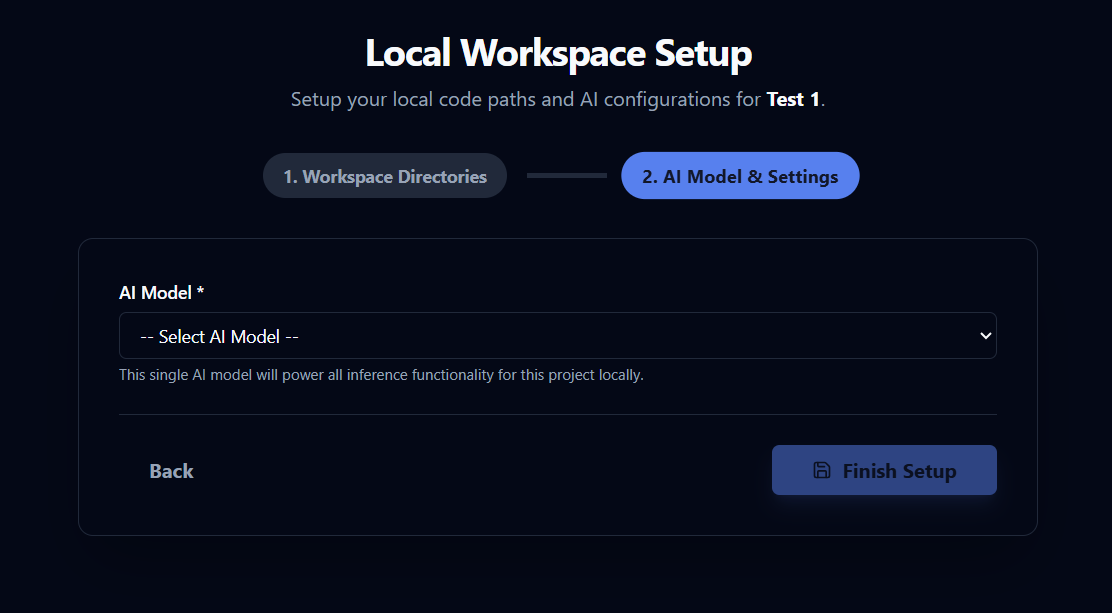
Click Finish Setup.
From the project's Project Settings menu you can later Edit General Details, Relocate Workspace, open AI & Analysis Config, or manage API Keys.
Your project is ready — head to Run an Analysis.